
Help centreSettingsUpdated
Set up tax the way your shop charges it
One default rate, and separate rules for the things that are taxed differently — including second-hand devices sold on a margin.
Your shop's default rate was set when you opened the account. Most shops need one or two rules beyond it, and this is where they go.
A rule is a rate plus how it is applied, and it can be pointed at a category or a condition rather than at everything.
Open the tax rules
Settings → Tax rules, or Sales → Tax Rules. The default is the one already there.
app.slickcell.com/sales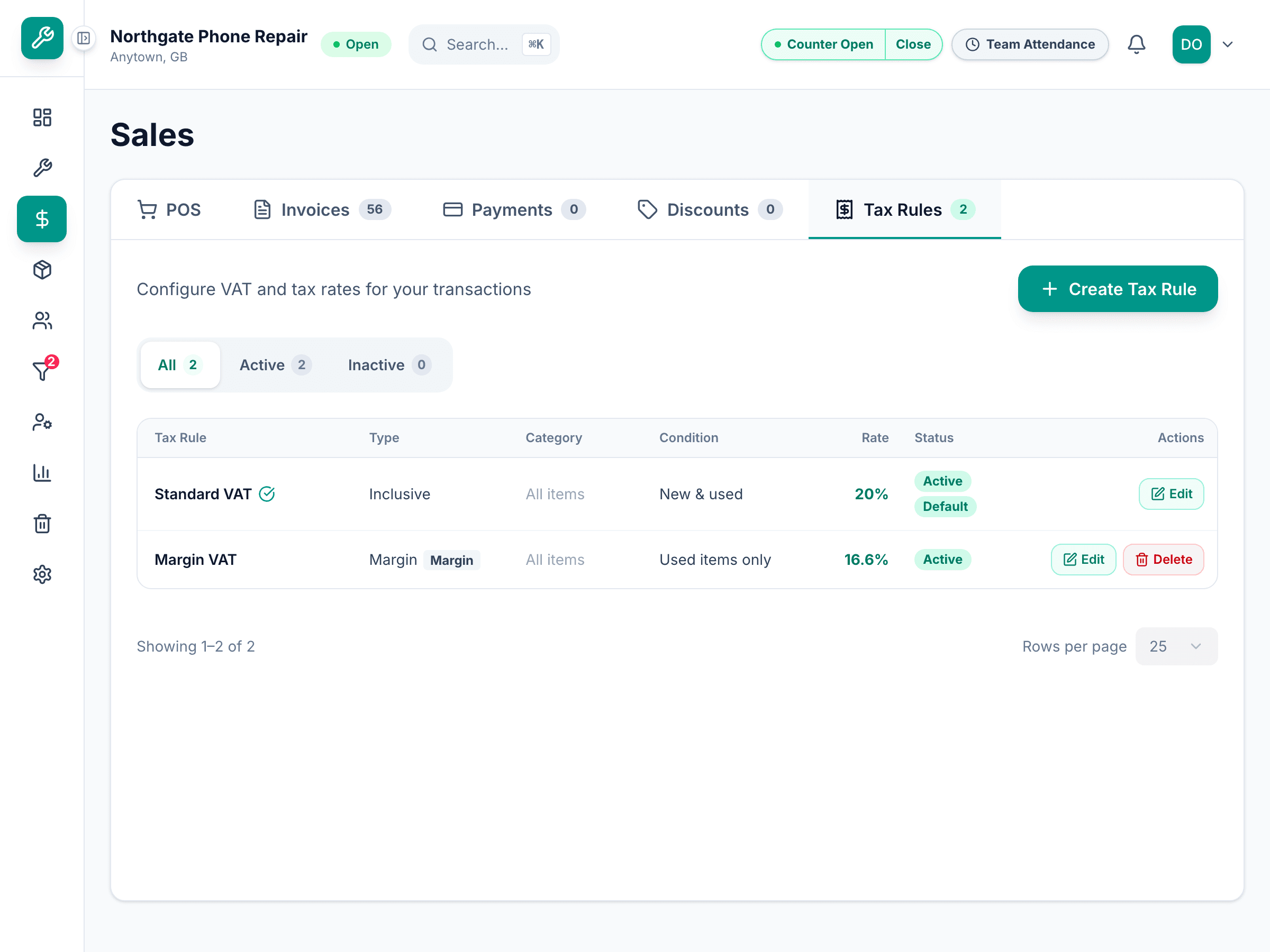
Understand the three treatments
Exclusive adds tax on top of the price. Inclusive means the price already contains it. Margin means the tax is on the difference between what you paid and what you sold it for, not on the whole price.
Scope a rule
A rule can apply to a category, or to a condition — which is how used devices get treated differently from new stock without anyone remembering to switch anything at the till.
A line picks up the rule that fits it. Nobody has to choose the right tax on a sale.
Check it on a sale
Put one of the affected items on a sale and look at the tax on the line. That is the fastest way to know a rule is doing what you meant.
Questions that come up
- We are not registered for tax
- Then say so in Settings. No default rule is created, and nothing is added to your prices.