
Help centreSettingsUpdated
Set your country, currency and tax rate
Where the currency sign on every receipt comes from, and what changes when you tell the app you are tax registered.
You set these when you opened the shop, and they show up on every invoice, receipt and label. This is where to correct them.
Open the shop settings
Settings → General. Your name, address, contact details and country are all here.
app.slickcell.com/settings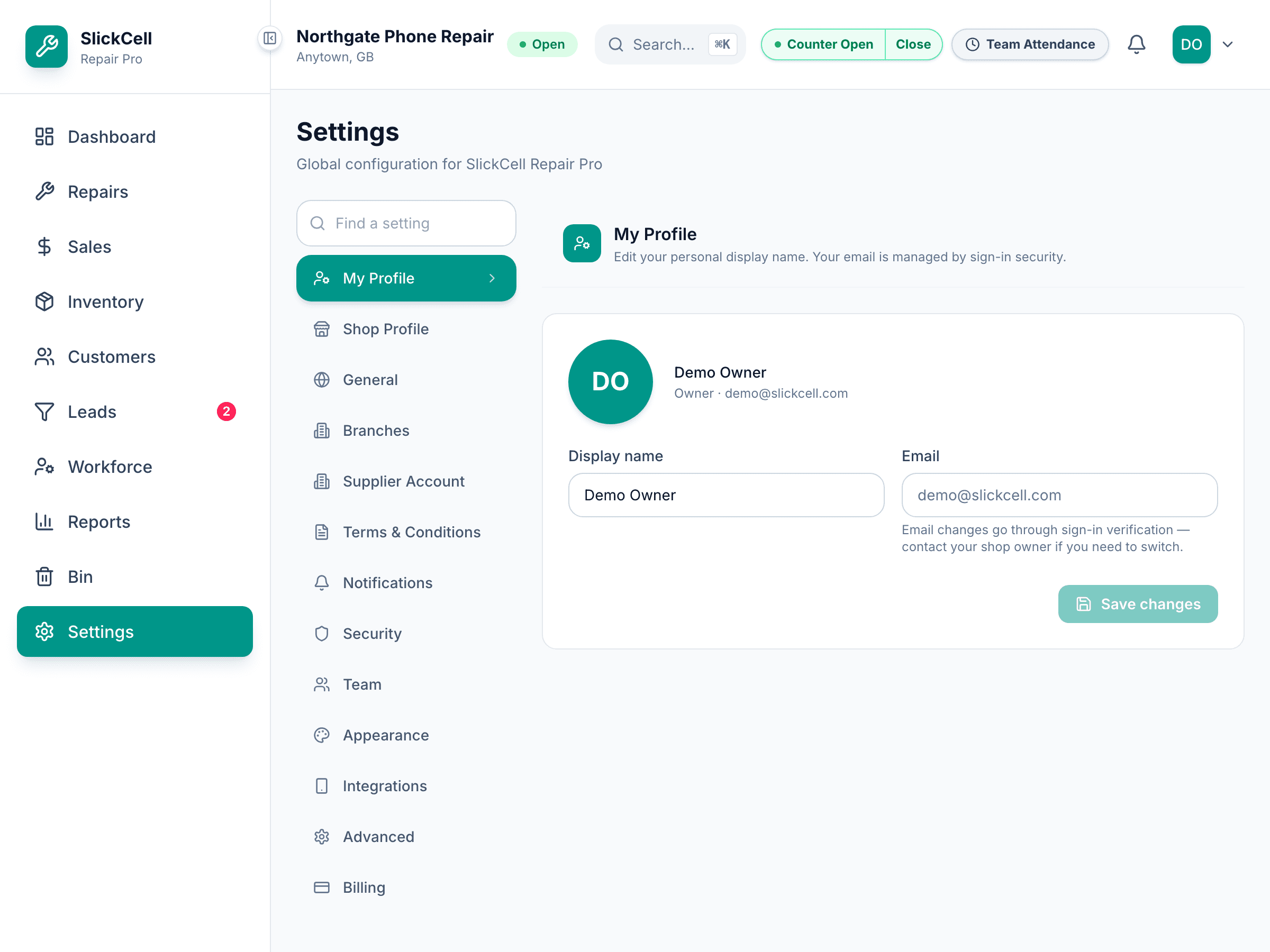
Change the country if it is wrong
The currency follows the country. It sets the sign shown on every money figure in the app — it does not convert anything, so changing it does not restate your history.
Say whether you are tax registered
If you are, give the rate. A default tax rule is created from it and applies to sales and repairs. If you are not, no rule is created and nothing is added to your prices.
This is a fact about the business, not a preference. The app asks rather than guessing from whether a rate happens to be filled in.